A short guide to Docker/Singularity
Note: this is a guide I made for a student I was TA’ing for, and I thought it might be useful to others. I tried to make it relatively comprehensive, but it is not meant to be a complete guide and the language is meant to not be really, really technical.
What are Docker and Singularity/Apptainer?
The main idea of these softwares, which are referred to as containerization softwares, is to encapsulate a programming environment in a single file.
What this means is that we are doing something generally analogous to a virtual environment in Python—but what Docker and Singularity (or Apptainer) allow users to do is encapsulate an entire computing environment.
This includes the OS (so, Ubuntu or CentOS or even something like a custom OS) and all of the software. We can install a custom version of Python, or even several versions, and then all of a specific group of libraries.
We can also install more complex libraries, like CUDA and GPU compute-related libraries, as well.
What’s even better about this is that we get all of this in one file that we can then pass around or send to someone else.
By sending someone a Docker or Singularity image—which are the individual files that encapsulate the computing environments, we can then let them
run an entire workflow that we’ve created, down to all of the specific libraries and versions that we used.
This is obviously highly useful for reproducible computing, but can also help make your life easier by allowing you to perform the same computation on the same environment across different places.
What is the difference between Docker and Singularity/Apptainer?
The original containerization software was Docker. It was used to facilitate workflows in more computer-science focused and particularly enterprise workflows, for example to allow a user to create a cluster of similar compute environments (for example, to have all the same environment to produce some product recommendation or something else). Scientific computing users thought this might be useful, but realized that there is a significant drawback of Docker—it requires root access to a given machine, and particularly in the high performance computing clusters that we typically operate on in academia, might allow a specific group of users to cause undesirable changes to a clusters’ underlying environment.
Singularity (originally developed by LBNL), which later became Apptainer (although a lot of people still use Singularity, and it is generally interoperable with Apptainer), are the standard for academic use.
In particular, you cannot use Docker images on Wynton—but you can use Singularity. One issue is that you cannot create Singularity images on Wynton (with some notable exceptions).
How do I use a Docker or Singularity image?
How to use Docker
Pulling a Docker image from DockerHub
Let’s assume for now we already have a Docker or Singularity (I’m just going to refer to them as Singularity images, but know that here we can use Apptainer here as the term interchangably.) I will also assume you have already installed Docker, which can be done fairly easily on an Ubuntu machine or on OS X—see the installation guide.
Say, for example, we want to use a Docker image equipped with the CUDA libraries and PyTorch.
This is sort of a simple case that might be easy, maybe we want to use a specific CUDA version or something similar.
Fortunately, many Docker images have already been created, and are uploaded to a central repository called the DockerHub (https://hub.docker.com) In fact, PyTorch itself distributes a group of relatively minimal Docker images with PyTorch installed on DockerHub: https://hub.docker.com/r/pytorch/pytorch
What we can do, then, is type in at the command line [see here to see the specific versions of the images provided]:
docker pull pytorch/pytorch:latest # the text after the colon indicates the version;
# alternatively:
# docker pull pytorch/pytorch:1.31.1-cuda11.6-cudnn8-runtime
NOTE: often Docker is set up to allow specific users to access it by invoking the docker command.
For other situations you may need to prepend sudo to the docker call—this is one of the reasons that
HPC clusters prefer to use Singularity. For this document I will just save space by not prepending the sudo but note that you may need it in practice.
When we do this, we get an output that looks like:
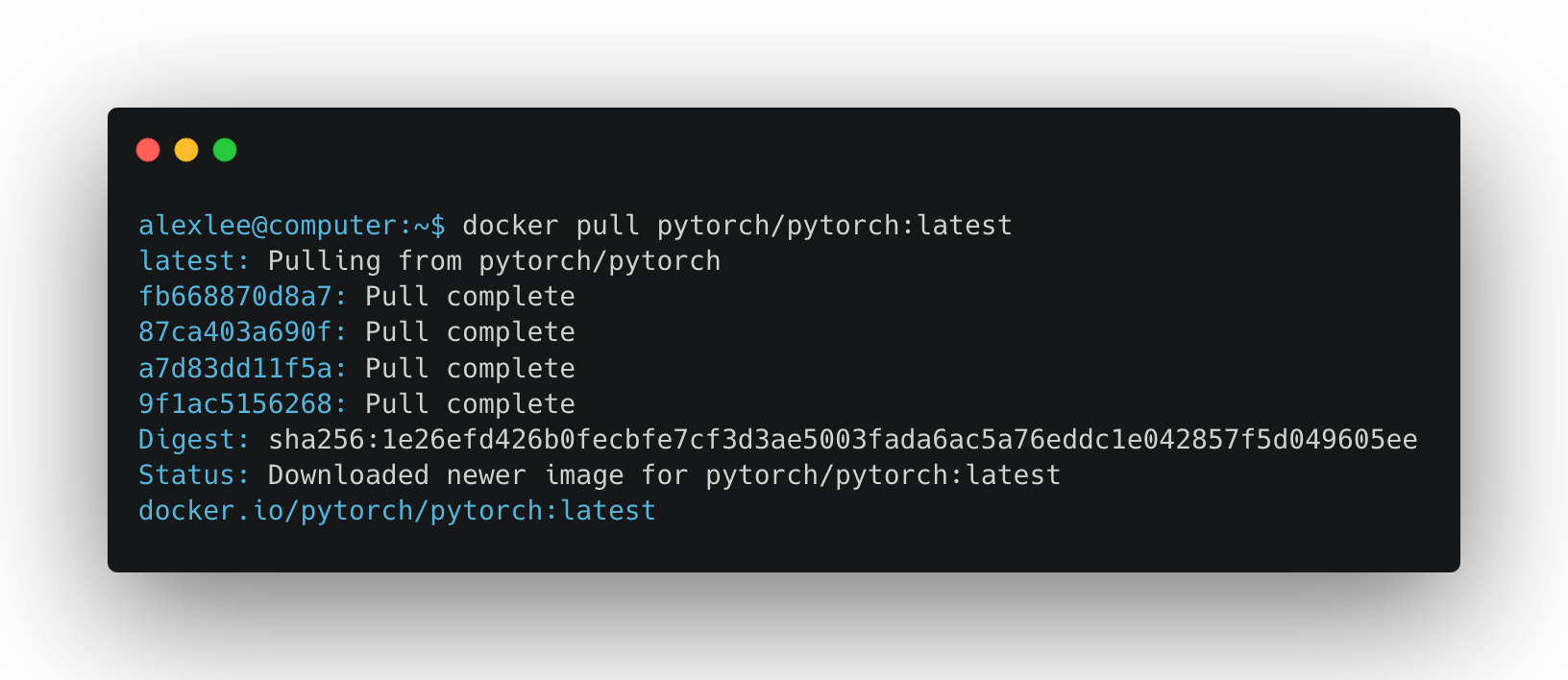
And we can then run a new command, docker images, which gives output shown in Figure 2 below.
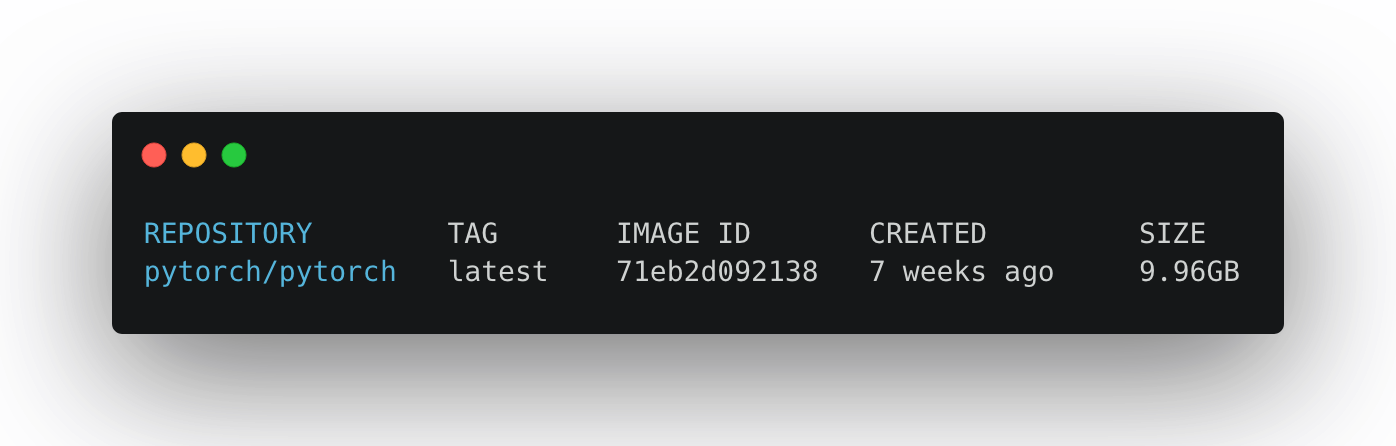
Keep in mind that in general if you want to keep track of which images are installed on your computer,
you can run this command. There are also other commands to keep track of which images are currently running, so,
this is sort of like keeping track of the difference between having Python 3.8 installed versus having an active Python process.
There is a key difference between running docker pull pytorch/pytorch, docker pull pytorch/pytorch:latest and something like docker pull pytorch/pytorch:1.31.1-cuda11.6-cudnn8-runtime. If you run docker images you’ll likely see
that if you were to run these three commands in sequence that you would get independent versions. This
is important for usage reasons, but also practically if you just run docker run pytorch/pytorch it will assume
you are looking for the latest one, and in fact if it detects that there is a newer version on DockerHub
will pull that one down and use it instead. Since images can be large, (5-10+GB), this can be sort of inconvenient.
In practice it is good to fix a version and use that specific one until you need to update.
Using the image and using GPU’s
Then let’s say I actually want to use the image. I need to run something like:
docker run --rm -it pytorch/pytorch python
# the it basically means "interactive"
# the rm means "remove the container after I finish"
# keep in mind you need to prepend a specific other command to allow
# GPU access to the container
This then gives the output in Figure 3.
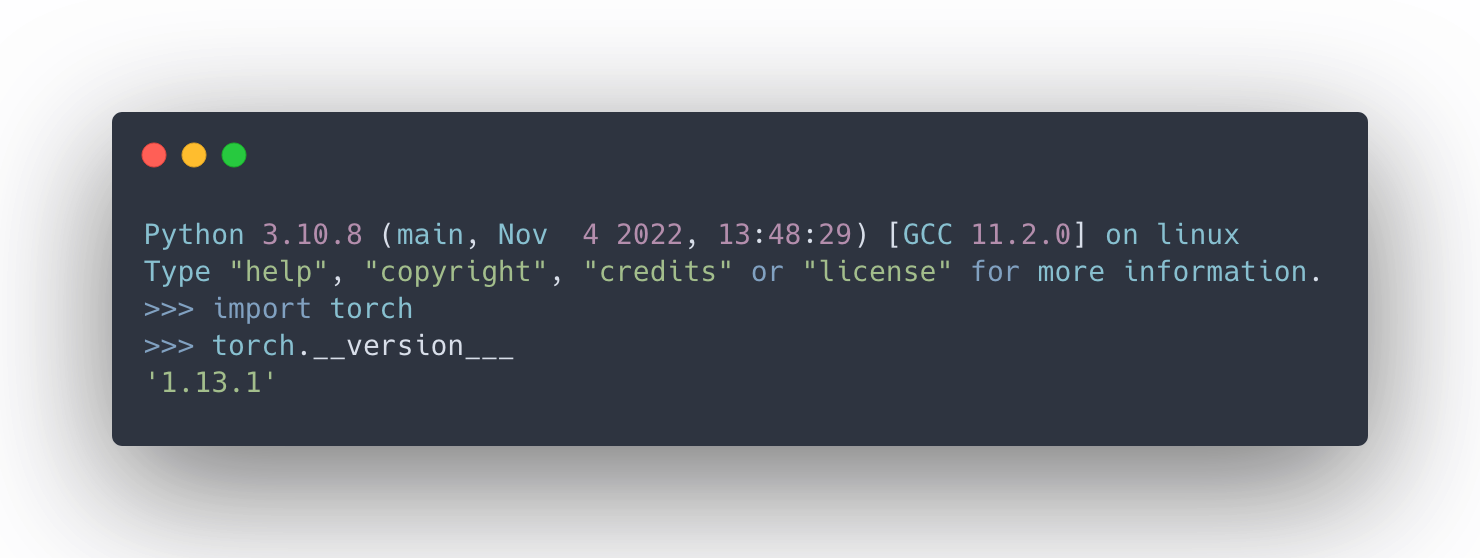
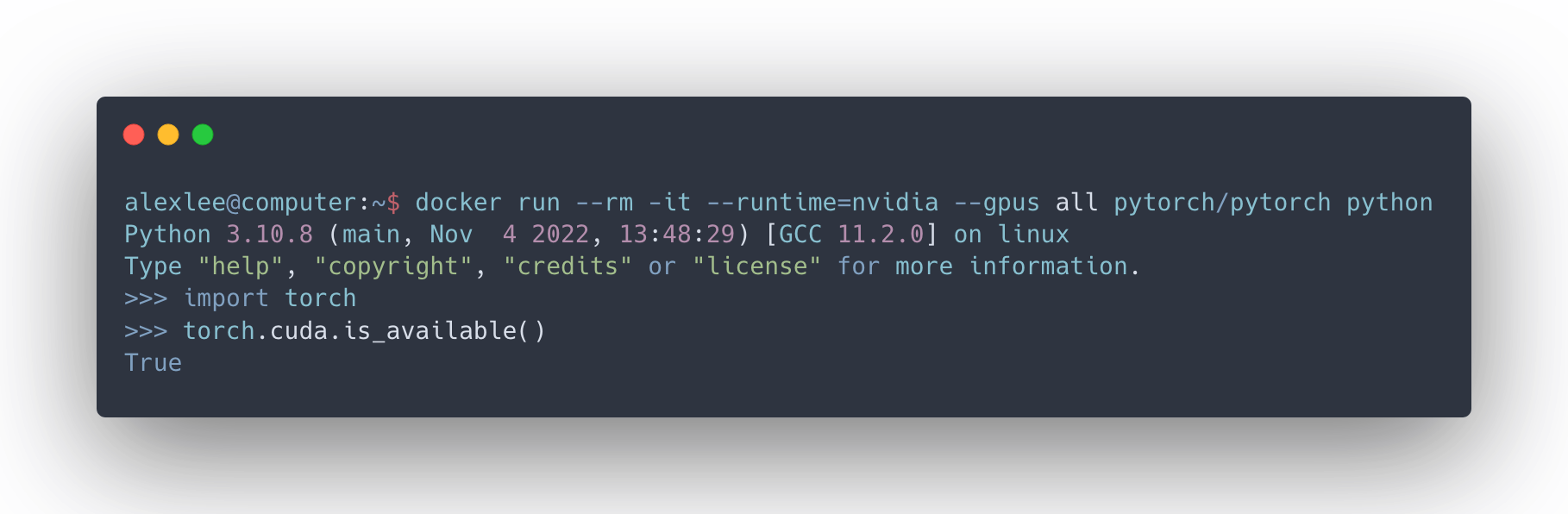
So this is great, because we are clearly running the commands inside the container! If we want to use CUDA in the image, we need to install some new software found at: https://docs.nvidia.com/datacenter/cloud-native/container-toolkit/install-guide.html#docker
And if we do this, and follow the command, we can see that we get the right output that CUDA is available (Figure 4).
We can run a Python program by calling: docker run --rm pytorch/pytorch python [someprogram] (notice I omitted the -it because we are not interested in running anything interactively.)
And in general we can run any program installed in the container using the same syntax. So, for example, if we
had installed samtools, a common sequence processing program, we could run: docker run --rm samtools --version or something similar.
One last note is that we can invoke the same container both with:
docker run --rm -it pytorch/pytorch [SOMECOMMAND] # or
docker run --rm -it 71eb2d092138 [SOMECOMMAND] # this is the "image id"
# found in the output of the `docker images` command
An important note is that the Docker images actually located in /var/lib/docker/images by default, but
accessing the actual files themselves can be sort of complex—although is possible by transmitting a .tar file (ex: docker save -o pytorch.tar pytorch/pytorch and docker load --input pytorch.tar | docker load < pytorch.tar).
In general if you want to try to send Docker images from one computer to another you might prefer to use a Singularity image, or to transmit the
Dockerfile, or the “recipe” to build a Docker image (more on that later).
Binding directories using docker -v
One important thing to note about Docker is that by default it does not bind any directories on the host machine.
Binding, here, means something roughly analogous to mounting a drive on a normal Unix filesystem. In practice
what this means is that you can’t access any of the files on your local machine by default in your Docker image.
So, if you had a file at /work-files/datafile.txt, then running docker pytorch/pytorch cat /work-files/datafile.txt would yield a file not found error.
So, what Docker allows you to do is mount volumes using the -v flag. Note that this flag is case sensitive: -V will not work (uppercase V).
If we wanted to access the datafile.txt file, what we would do is then run something like:

The syntax of the -v command is to have a source and destination mount volume path on either side of a colon.
So, in this example, what we are saying is to mount /work-files at the location /work-files inside the container.
We don’t have to have the destination path be the same as the source path.
If we had changed our previous mount to -v /work-files:/data then we would just have to adjust the cat command correspondingly, so:
docker run --rm -v /work-files:/data pytorch/pytorch cat /data/datafile.txt
Which would produce the same output. What matter is consistency in how the data is accessed. Also note that
if you want to bind multiple paths, say /harddrive1 and /harddrive2, you would need to issue two -v commands, so something like:
docker run --rm -v /harddrive1:/data1 -v /harddrive2:/data2 ...some other stuff...
This is a super basic introduction to Docker—there is a whole lot more, but for scientific computing this generally covers the very basics.
There is a ton online to be found that covers more advanced topics like container organization and management.
You can also check the Docker man page or run docker --help to see more subcommands.
How to use Singularity / Apptainer
The good news is that Singularity follows a lot of the same rules as Docker.
The main difference, is that instead of with Docker, where the images “live” somewhere in the /var/lib/docker folder (or somewhere else),
Singularity images are usually stored in user space directories, with particular endings: .simg, .img or .sif.
There is also an analogous resource to DockerHub, called SingularityHub where images can be stored. You can also pull Docker images directly through Singularity. There are some subtle differences in the way that permissions and environment variable mappings are performed with Singularity images vs Docker, so in general there can be some inconsistent behavior using a Docker image vs a Singularity-converted version of the same image, but this can be mediated somewhat by building on top of a Docker container.
What this means in practice is that we can operate much the same as we do with Docker images. The main difference is that we first need to “pull” the
container before we operate on it. This is different from Docker because with Docker we can just run docker run [imagename] [command] and Docker will know it’s supposed to grab it (if it exists) from DockerHub.
With Singularity, we need to run commands in sequence:
singularity pull python-pytorch-image.sif docker://pytorch/pytorch:latest

# this will pull from Docker hub and create file python-pytorch-image.sif
singularity shell python-pytorch-image.sif # will drop you into a shell
singularity exec python-pytorch-image.sif python # python interpreter
Note there is one command for shell and one command for exec. Most of the time
you will probably want to use exec to run generic programs, unless you are explicitly looking
to get a shell from the image to inspect something. exec is somewhat
equivalent to run from Docker.
Mounting volumes with -B
This functionality is basically the same as Docker, but instead of -v,
we need to use -B (note capital). Again you need to have multiple -B commands to mount multiple volumes.
How do I build my own containers?
The easiest thing to do is to find a Docker or Apptainer/Singularity container that already has the software you want.
The next easiest thing is to start from a container that has most of what you want, and then to build on top of that. This is by far the best way to build complex containers that utilize packages like CUDA—there are some sharp edges to be encountered with building these softwares even on a local machine.
The main tool you will use for this type of work is basically a config file called a Dockerfile or a Singularity / Apptainer recipe file.
For example, at the pytorch repository, in the main repository you can find a Dockerfile: https://github.com/pytorch/pytorch/blob/master/Dockerfile.
Let’s go through the sections of this file.
First, we find:
ARG BASE_IMAGE=ubuntu:18.04
ARG PYTHON_VERSION=3.8

FROM ${BASE_IMAGE} as dev-base
So there are a couple important things to see here. Notice that each line has an all-uppercase command (either ARG or FROM) and then something afterwards. Every line in a Dockerfile needs to start (you can have a multiline command that you break up with \ but in general each line should start with one of several of these commands).
Possibly commands are:
ARG: sets a variable within the DockerfileFROM: a special command that allows us to set a “base” image that we want to build off of. I will explain this in the next lines.RUN: actually run a command, so for example this could beapt-get install SOMEPACKAGEor,pip install numpy. Anything you would want to run on the command-line can be run usingRUN.ENV: sets an environment variable inside the containerCOPY: copy a file from the local environment (ie your computer) and the Docker image. Why would you want to do this? In case, for example, you have a particular script file that you want to put into your container, or maybe you have a config file you want to pull in for future usage.WORKDIR: sets the working directory; sort of likecd-ing into a directory.
This is a subset of the commands, and you can read more on the Docker documentation
Back to the first couple lines of the Dockerfile, this is setting up an argument for the “base” image, so we are saying “I want to start with a fully-built Ubuntu 18.04 image” (this FROM can read from any Dockerhub image, so we can start from any image that has been uploaded to the hub).
Then, we set up a PYTHON_VERSION argument as well to keep track of the Python version—you don’t have to do this, but it can be convenient to keep track of arguments if you have something you refer to often.
The next section actually starts to build the command:
RUN apt-get update && apt-get install -y --no-install-recommends         build-essential         ca-certificates         ccache         cmake         curl         git         libjpeg-dev         libpng-dev &&     rm -rf /var/lib/apt/lists/*
RUN /usr/sbin/update-ccache-symlinks
And this should start to look somewhat familiar. Here we are just installing a couple of basic packages. Notice that we are actually running two different bash commands in the first RUN that we split up with a &&. Also note that we are splitting the line up using \ just to make it more readable. The next RUN command is then just to update system symlinks.
RUN mkdir /opt/ccache && ccache --set-config=cache_dir=/opt/ccache
ENV PATH /opt/conda/bin:$PATH
The next line is doing some more abstract commands with the C compiler. Then in the next line we are adding the conda installation path to $PATH.
The rest of the container build is going through some more sophisticated operations to basically make the container smaller.
But let’s skip forward and just try to understand the commands in general. In these next commands, we are installing conda:
RUN case ${TARGETPLATFORM} in          "linux/arm64")  MINICONDA_ARCH=aarch64  ;;          *)              MINICONDA_ARCH=x86_64   ;;     esac &&     curl -fsSL -v -o ~/miniconda.sh -O  "https://repo.anaconda.com/miniconda/Miniconda3-latest-Linux-${MINICONDA_ARCH}.sh"
COPY requirements.txt .
RUN chmod +x ~/miniconda.sh &&     bash ~/miniconda.sh -b -p /opt/conda &&     rm ~/miniconda.sh &&     /opt/conda/bin/conda install -y python=${PYTHON_VERSION} cmake conda-build     pyyaml numpy ipython &&     /opt/conda/bin/python -m pip install -r requirements.txt &&     /opt/conda/bin/conda clean -ya
Just to really unpack this, we download the Miniconda3-latest-Linux-{SOME-COMPUTER-ARCHITECTURE}.sh shell script from the Anaconda website, then use it to install conda. We copy the requirements.txt file into the container and then use it to install whatever dependencies we need—we don’t have to do this, and we could actually just run a long command with the specific packages, for example:
RUN /opt/conda/bin/python -m pip install numpy pandas scipy

# or
RUN pip install numpy pandas scipy

# or even
conda install numpy pandas scipy
These are the basic operations that you would use to build a container. If you wrapped all of this stuff up into a Dockerfile, then we can actually build the container with this command:
# say we have named the file Dockerfile, which is the standard
# you don't have to name it Dockerfile and if you don't specify
# -f and if you don't it will assume you want to use a file called Dockerfile

docker build --tag SOME_IMAGE_NAME -f Dockerfile .
And if all goes well, you will see the image with that tag (you don’t have to use a tag, but it helps to keep track of things) in the output of docker images.
From there we can use the image like we discussed in the previous sections.
Converting to Singularity / Apptainer for use on Wynton
It’s super convenient to build images this way and then convert to Singularity / Apptainer if necessary. In general, Docker containers are stored as .tar.gz files stored in a specific file (usually /var/lib/docker). These can then be converted directly to Singularity images (which are more or less the same as Apptainer images) using the handy docker2singularity command: https://github.com/singularityhub/docker2singularity.
The example command is here:
$ docker run -v /var/run/docker.sock:/var/run/docker.sock -v /tmp/test:/output --privileged -t --rm quay.io/singularity/docker2singularity ubuntu:14.04And here we are saying that we want to take the image ubuntu:14.04 (which can also be whatever image you have locally) and convert it to a singularity sif file (you will get a ubuntu_14.04…some…descriptors…sif file).
You can also convert a given Docker image by saving it as a tarball (basically a zip file) with:
docker save IMAGE_ID -o some-name.tar
# image id is read directly from IMAGE ID in docker images
# so for the prev example in figure 2 would be:

docker save 71eb2d092138 -o some-name.tar
Then we convert it using:
singularity build --sandbox my-new-simg.sif docker-archive://some-name.tarwhich will have the same output. The --sandbox part we will discuss later.
Building Singularity / Apptainer images directly
A lot of the structure to how you use a Singularity “recipe” file is similar to that of Docker.
Here is a super simple version from the Singularity docs and this other website:
# let's call this image recipe.def
Bootstrap: docker

From: tensorflow/tensorflow:latest

%setup
  touch /some-config-file-on-host

%files
  /some-config-file /opt
  /some-other-file /tmp

%post
  apt-get update
  apt-get upgrade -y
  apt-get install -y python3
  python3 -m pip install jupyter

%runscript
    exec /usr/bin/python "$@"
Basically now we split up the config process into several “operations”. The first part is fairly similar to what it was before—we say we want to start with a Docker image that are from the tensorflow/tensorflow:latest image on Dockerhub (note we could also set up from Singularity; other software vendors also have pullable sources such as nvidia container toolkit.
The first part, setup just runs things on your local machine. Here you might build some software you can then copy into the image, or just to set up maybe a log file or something similar.
The next part, files, is analogous to COPY in the Dockerfile, and refers to copying files from the host machine to the image. So, for example, here we are copying /some-config-file on the host to /opt.
Then, post is the section we are going to actually do most of the things we want to do. This is analogous to RUN in the previous section—we put stuff here where we would want to install some programs or do some kind of actual operations. For example, pull the Minicoda shell script and install Miniconda like we did in the previous example.
runscript is a new section where we can specify what happens when we run singularity run [MYIMAGE]; which will automatically, in this case, run python on the next thing in the command.
This is different from the previous version of what I showed you, which used singularity exec [MYIMAGE] SOMETHING where SOMETHING could be any command—singularity run is really meant to facilitate using a single program. A potential use-case for this is if we had a container that runs a huge pipeline—we could just package a runscript here that runs the entire thing from the argument and allows the user to skip a bunch of long command type-ins.
Then we can build the image using:
singularity build my-image-name.sif myrecipe.def